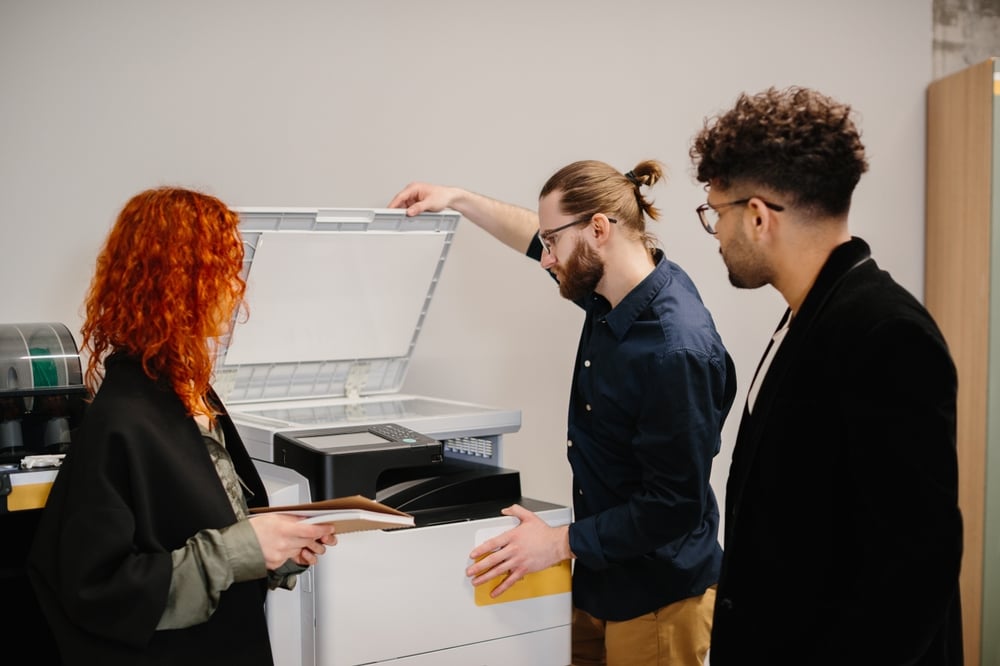

If you’ve ever walked past your copier and found a 200-page personal document sitting in the tray — or gotten a supply bill that seemed way too high for what your team actually does — you already understand the problem that Sharp User Control can help with. Most businesses install a copier, hook it up to the network, and let everyone print freely with zero visibility into what’s happening. That’s a fast track to wasted supplies, security risks, and no accountability. Platinum Copier Solutions ensures the users choose whether or not they want to default to B&W printing, and most do!
Sharp‘s built-in User Control feature helps with that. And one of the most practical ways to implement it — especially in environments where you don’t want to manage usernames and passwords at the machine — is through user number codes: simple 5–8 digit codes assigned to each person or department.
This article covers why businesses use it, what it actually does for you, and step-by-step instructions for setting it up on the Sharp BP Series.
Why Bother? The Business Case for User Control
1. Cost Visibility and Chargebacks
If you’re paying a per-page cost on a managed print contract (or just buying toner yourself), every unchecked page costs real money. User Control lets you see exactly how many pages each person or department printed, copied, scanned, or faxed — and export that data for billing, reporting, or internal chargebacks. Accounting can be billed differently than Marketing. Departments that over-print get the conversation.
2. Stopping Waste Before It Happens
You can set page limits per user or per group. Once someone hits their monthly ceiling, they’re cut off until an admin resets the count. That alone tends to change behavior — people print more deliberately when they know there’s a limit.
3. Function Restrictions
Not every user needs access to every function. User Control lets you define Authority Groups — preconfigured permission sets that you assign to users. For example:
- Front desk staff: copy and scan only, no color printing
- Sales team: full color access, no fax
- Executives: unrestricted
This is useful for reducing waste, but also for compliance and security. Not everyone should be able to scan to USB or send to external email addresses.
4. Accountability Without a Password Manager
The user number (code) method is frictionless. Users don’t need an IT account or password reset request — they just have a 5–8 digit number. It’s personal enough to create accountability, simple enough that people won’t complain about it.
5. Audit Trails
Need to know who printed sensitive documents last Tuesday? User Control keeps a record. You’re not flying blind anymore.
Setting Up Sharp User Control on the BP Series (Code-Based Authentication)
What you’ll need: The copier’s IP address, admin access to the web interface, and a list of users you want to create.
Step 1: Find the Machine’s IP Address
If you don’t know the IP, print a network configuration page directly from the machine:
- On the home screen, tap System Info. This will display the machine’s IP address.
- Alternatively, you can navigate to System Settings → Status tab > Network Status on the left menu and note the IPv4 address
Step 2: Open the Web Interface
- Open a web browser on any computer on the same network
- Type the copier’s IP address into the address bar and press Enter
- The Sharp web interface will load — this is your main administration portal
Step 3: Log In as Administrator
- In the web interface, click Administrator Login (usually in the upper right)
- The default password is admin — if it’s been changed and you don’t know it, contact your Sharp dealer
- Once logged in, you’ll have access to the full settings menu
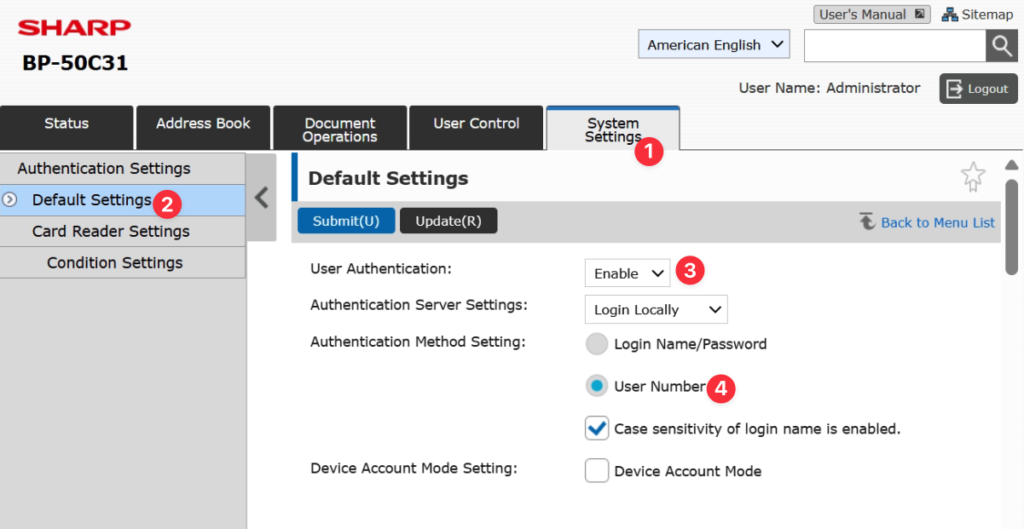
Step 4: Enable User Authentication
- Click the System Settings tab, then click Authentication Settings
- On the Default Settings page, switch the User Authentication drop-down menu to Enable then tick the User Number, then click Submit.

At this point, the machine is in lockout mode. No one can use it without entering a valid code. Make sure you complete the remaining steps before leaving the machine unattended.
Step 5: Create Authority Groups (Optional but Recommended)
Authority Groups let you define what each class of user can do. You can use the defaults (User, Admin) or create custom groups.
- In User Control, click Access Control Settings → Authority Group
- Click Add
- Name the group (e.g., “Standard User,” “Color Restricted,” “Admin”)
- Set the permitted functions: color printing, B&W printing, copying, scanning, faxing, USB access, etc.
- Click Submit
Repeat for each group you need. You’ll assign users to these groups in the next step.
Step 6: Set Page Limits Per Group (Optional)
If you want to cap how many pages each group can use per billing period:
- In User Control, click Access Control Settings → Pages Limit Group
- Click Add
- Name the limit group and set limits for color copies, B&W copies, color prints, B&W prints, etc.
- Click Submit
You’ll assign this limit group to users during user creation.
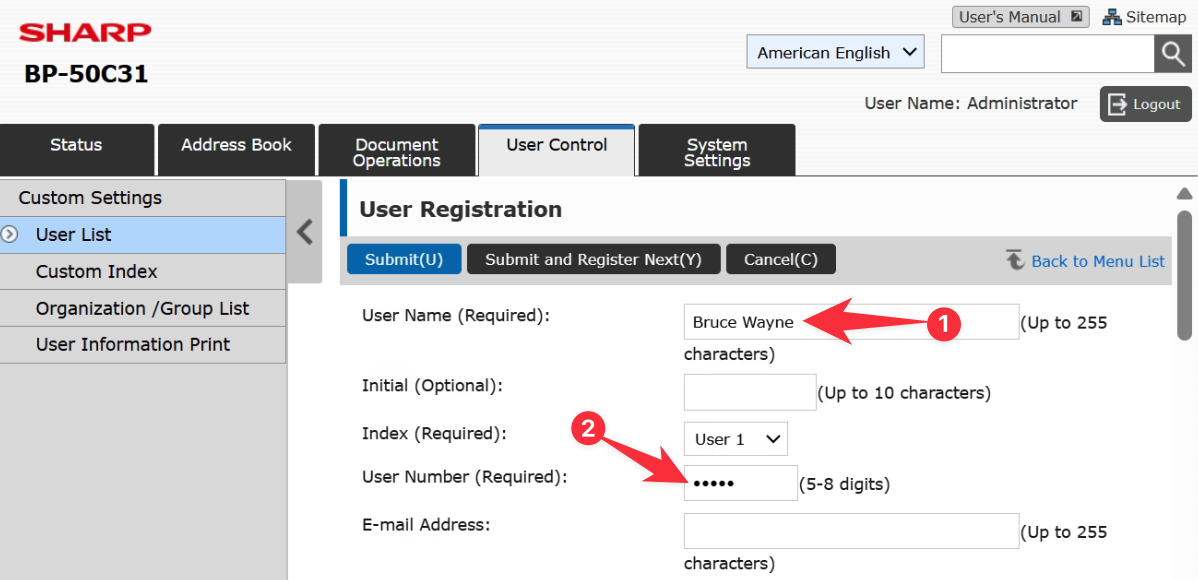
Step 7: Create Users
This is where you register each person with their unique code.
- In User Control, click User Settings → User List
- Click Add
- Fill in:
- User Name: The person’s name (for reporting purposes)
- User Number: A 5–8 digit code you assign them — this is what they’ll type at the machine
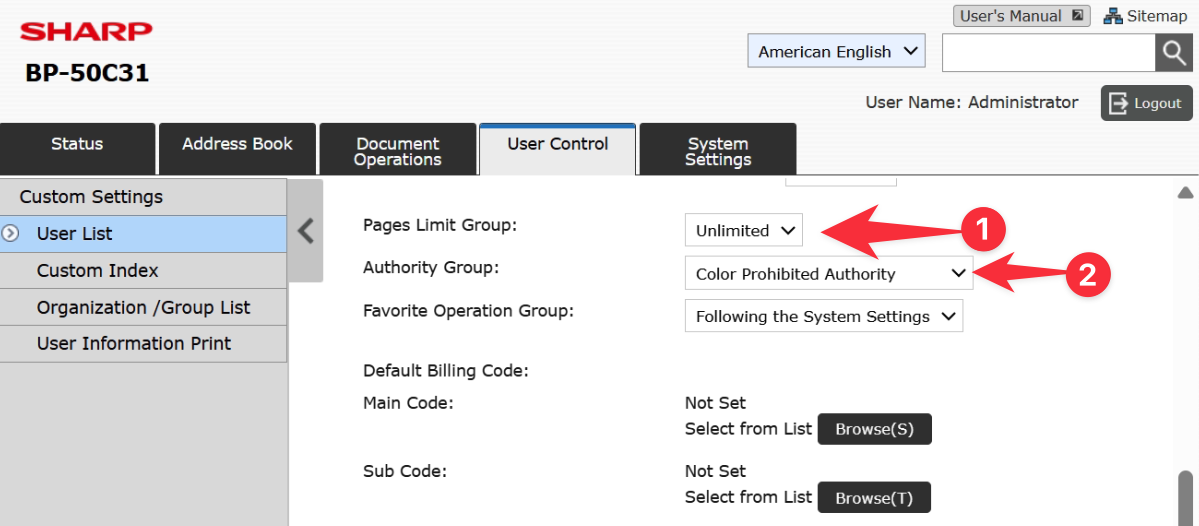
- Authority Group: Select the appropriate group from Step 5
- Pages Limit Group: Select if applicable from Step 6
- Email Address: Optional, but useful for scan-to-email workflows
- Click Submit
Repeat for each user. You can register up to 1,000 users on BP Series devices.


Tip: Use a consistent numbering scheme — employee IDs, extension numbers, or department codes all work well. Just keep a master list somewhere secure.
Step 8: Configure the Print Driver on Each Workstation (Windows)
This step is critical and often skipped. If users don’t have their code entered in the print driver, their print jobs will either be rejected or held in the queue.
- Open Settings → Devices → Printers & Scanners (Windows 10/11)
- Click on the Sharp printer, then click Manage → Printing Preferences
- Click the Job Handling tab
- Check the User Number checkbox
- Enter the user’s 5–8 digit code in the field provided
- Click Apply or OK to save
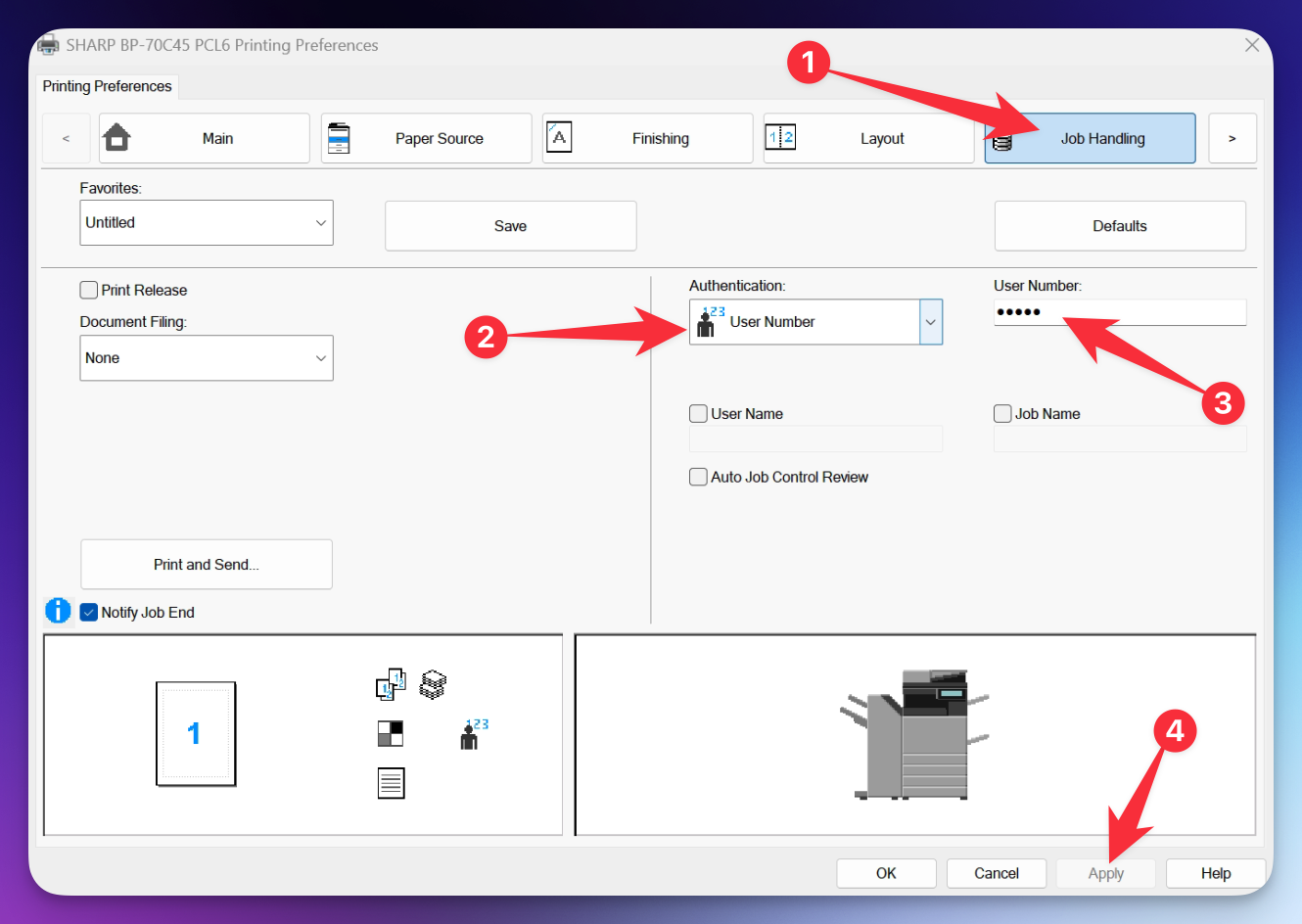
Optional: If users will be sharing workstations and printing under different codes, check “Auto Job Control Review” — this will prompt the user to enter their code each time before the print job is sent. Useful in shared environments.
Step 9: Test the Setup
Before rolling this out to the whole office:
- Walk to the machine and verify the login screen appears when you press Copy, Scan, etc.
- Enter a valid user code — confirm you’re granted access and the correct functions are available
- Print a test page from a workstation with a configured driver — confirm it prints and is logged under the correct user
If something doesn’t work, double-check that the user code in the print driver exactly matches the user number in the web interface.
Step 10: Pull Reports and Reset Counts
Once User Control is running, you can pull usage reports at any time:
- In the web interface, go to User Control → User Count
- You’ll see a breakdown of pages used per user across all functions
- To export: click Save — this downloads the data as a CSV/Excel file (to reset the counts, check the Save and Delete the Data before clicking the Save button)
- To reset counts after a billing period: check the users you want to reset and click Clear Count

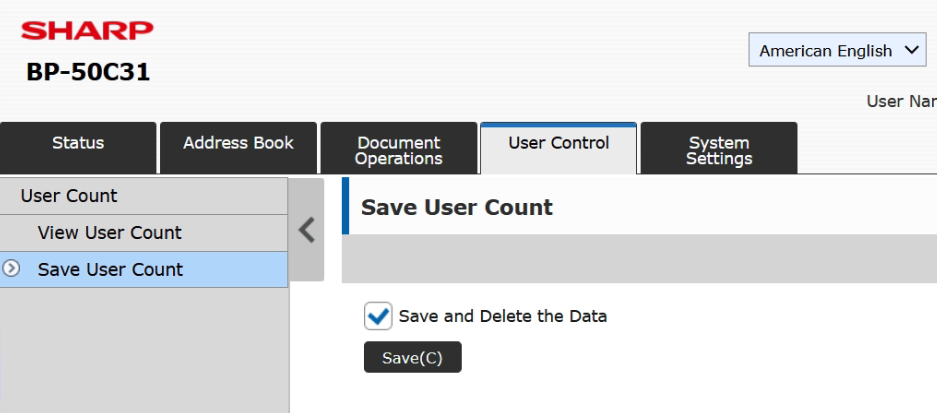
Best practice: Export and reset at the end of each billing cycle so you have a clean record for each period
Frequently Asked Questions
Q: What if a user forgets their code?
Keep record of your codes. You can always go back to the user’s settings and re-enter a code, but it is hidden as a password on the interface.
Q: Can we use department codes instead of individual codes?
Yes. Nothing stops you from creating a user called “Accounting” with a shared code distributed to the whole department. You lose individual tracking, but you gain departmental reporting. Plenty of businesses run it this way.
Q: What happens to print jobs sent without a valid code?
They will be rejected. You will hear the machine rev up as if it’s about to print, then nothing will come out. Double check you have a valid user code entered into your driver if this happens.
Q: Can we add Active Directory / LDAP login later?
Yes. The BP Series supports LDAP authentication for larger environments. That’s a more advanced setup and typically involves IT, but the infrastructure you build here (authority groups, page limits) carries over.
Q: Does this work for walk-up copying and scanning, not just printing?
Yes. Once User Authentication is enabled, all four functions — copy, print, scan, and fax — require authentication at the machine. The code-based login applies to everything.
In Summary
Sharp User Control on the BP Series is one of the most underused features on the market. It’s built in, it costs nothing extra, and it gives you real oversight of one of your business’s ongoing operational costs. The setup takes less than an hour, and the reporting pays for itself the first time you catch a department running wild on color output.
Go All In with Platinum Copier Solutions
Ready to transform the way your office works? Platinum Copier Solutions delivers industry-leading Sharp copiers, printers, and workflow technology backed by expert local service and support. Whether you’re looking to streamline document management, enhance security, or reduce costs, our team will tailor the right solution for your business. Don’t settle for off-the-shelf equipment—partner with Platinum Copier Solutions and experience the difference of a trusted technology provider.

Collin has been in the office technology space for over 20 years. Taking the journey from warehouse helper, to delivery driver, to IT consultant, to sales – he has run the full spectrum of the industry and retained all of the knowledge along the way to tackle any task.