
A copier that keeps jamming can quickly turn a routine print job into a frustrating interruption. While occasional jams are normal, frequent problems may point to issues with the paper, copier components, or how the machine is being used. Understanding the common causes can help you identify the source of the problem, prevent recurring jams, and keep your office running smoothly. In this article, you’ll learn why your copier keeps jamming and what you can do to troubleshoot the issue before calling for professional service.
Key Takeaways
- Properly loaded, correctly sized paper can help prevent common feeding problems and paper jams
- Damaged or poorly stored paper can increase the risk of misfeeds and recurring jams
- Worn rollers, misaligned sensors, and damaged trays can cause persistent copier jams
- Regular cleaning and inspection of the paper path and internal components can reduce recurring issues
- Persistent jams may indicate an internal problem that requires professional copier service
Understanding Copier Paper Jams: What You Need to Know
When your copier jams, it can bring your workflow to a frustrating stop. While paper jams are common, they’re often caused by simple issues that you can identify and address. Understanding these common causes can help you prevent recurring jams and keep your copier running smoothly.
Improperly loaded paper is one of the most common causes of jams. Make sure the paper is neatly stacked and aligned with the tray guides before starting a print job. Using the correct paper type and size for your copier can also help prevent feeding problems.
Small paper fragments left behind after a jam can create additional problems. Check the paper path carefully and remove any torn pieces before using the copier again. Regular cleaning can help keep the paper path clear and reduce recurring jams.
Misaligned or overfilled paper trays can also prevent paper from feeding properly. Keep the tray aligned according to the copier’s specifications and never exceed its recommended capacity. Overloading the tray may cause multiple sheets to feed at once or create a jam.
Dirty rollers can make it difficult for the copier to feed paper smoothly. Dust and debris can build up over time, so clean the rollers regularly with a lint-free cloth as recommended by the manufacturer. Keeping these components clean can help reduce paper-feeding problems and improve copier performance.

The Role of Paper Quality in Preventing Jams
The quality, condition, and type of paper you use can have a significant impact on copier performance. Low-quality or improperly stored paper is more likely to curl, stick together, or create excess paper dust, increasing the risk of jams. Using the right paper and storing it properly can help your copier feed sheets more consistently. Keep these paper-related factors in mind:
- Choose quality paper: Higher-quality paper is less likely to curl, shed dust, or cause feeding problems.
- Store paper properly: Keep paper in a cool, dry place to prevent moisture from affecting its condition.
- Use the correct settings: Heavy or textured paper may require specific copier settings to feed properly. Check the manufacturer’s recommendations before printing.
- Match the paper size: Make sure the paper size matches the copier’s settings to prevent misfeeds and jams.
- Avoid damaged paper: Do not use sheets that are bent, curled, damp, or otherwise damaged, as they can increase the risk of jams.
Spotting and Fixing Hardware Issues in Your Copier
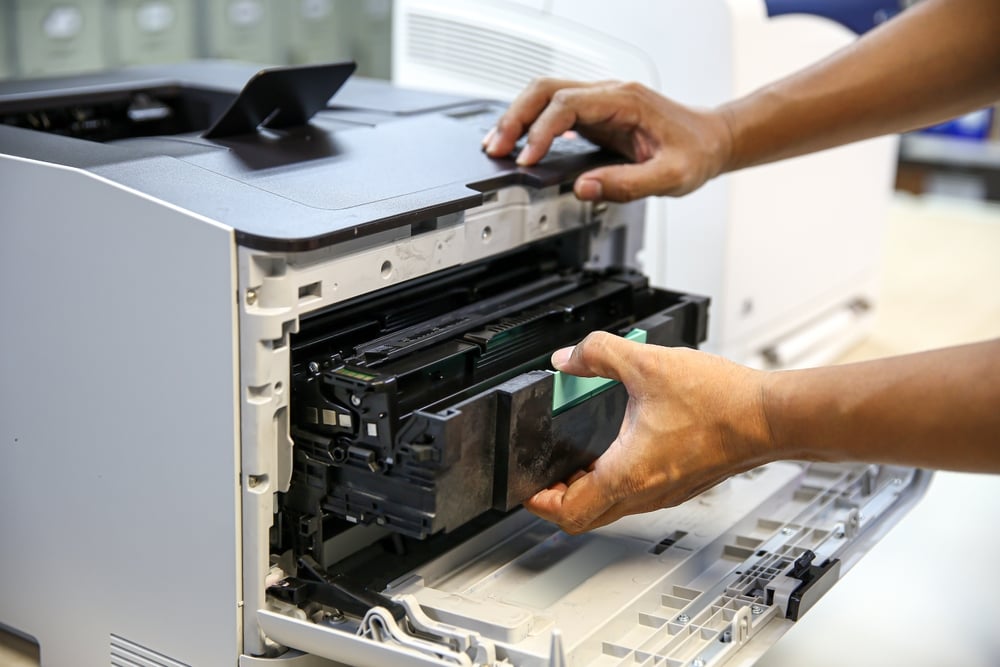
Some copier jams are caused by worn or damaged hardware rather than paper problems. Components such as rollers, sensors, paper trays, and the fuser can affect how paper moves through the machine. Identifying these issues early can help prevent recurring jams and costly repairs.
| Hardware Component | Common Problem | What to Check |
| Paper Rollers | Worn rollers may lose their grip and cause feeding problems | Check for wear and replace rollers when needed |
| Sensors | Misaligned or faulty sensors can trigger false paper jam alerts | Have a technician inspect and realign the sensors |
| Paper Tray | Cracks or other damage can cause paper to misfeed | Inspect the tray and replace it if damaged |
| Fuser Unit | A malfunctioning fuser can cause paper to become stuck | Have the fuser inspected and serviced by a qualified technician |
| Internal Parts | Loose screws or components can interfere with paper alignment | Check for loose parts during routine maintenance |
Troubleshooting Steps for Recurring Paper Jam Issues
Recurring paper jams can be frustrating, especially when they interrupt important work. Before calling for professional service, you can take a few basic troubleshooting steps to identify and resolve the problem. Always follow your copier manufacturer’s safety and maintenance instructions when inspecting the machine. Try these steps to address recurring paper jams:
- Turn off the copier: Power down and unplug the machine before inspecting it to protect yourself and the equipment.
- Remove the jammed paper: Gently pull out the paper to avoid tearing it or leaving scraps inside the copier.
- Check the paper guides: Make sure the guides are properly aligned with the size of the paper in the tray.
- Clean the rollers: Remove dust and debris from the rollers as recommended by the manufacturer to support smooth paper feeding.
- Check paper settings: Confirm that the copier settings match the paper type and size you are using.
When to Call in Professional Help for Persistent Copier Jams
If your copier continues to jam after you’ve checked the paper, trays, rollers, and settings, the problem may require professional attention. Frequent jams can point to worn components or internal issues that are difficult to identify without specialized knowledge. Continuing to use the copier without addressing the underlying problem could lead to additional damage and downtime.
Professional maintenance can help identify problems early, keep your copier operating reliably, and extend its useful life. A service agreement can also provide timely support when recurring issues arise, helping your business avoid prolonged interruptions. If basic troubleshooting does not resolve persistent jams, contacting a qualified copier technician is often the best next step.
How Platinum Copier Solutions Can Help
Platinum Copier Solutions helps businesses select, maintain, and repair office copiers and printers. Our certified technicians have the experience to diagnose persistent equipment issues and provide dependable maintenance and repair support.
With combined experience of 200+ years in the industry and 100% Sharp-certified technicians, we help businesses keep their office equipment performing reliably. From routine maintenance to troubleshooting more complex problems, our team provides solutions designed to reduce downtime and support your business’s day-to-day operations.

The Platinum Copier Solutions Team
Copier Paper Jams FAQ
Can using recycled paper cause copier jams?
Recycled paper can sometimes be more prone to feeding issues because of differences in texture, moisture content, and paper dust. However, high-quality recycled paper that meets your copier’s specifications should generally work without problems. Check your copier’s recommended paper types and test a small amount before switching to a new paper brand.
Can humidity affect how often my copier jams?
Yes, changes in humidity can affect paper and make feeding less reliable. Excess moisture can cause sheets to stick together, while very dry conditions can contribute to static and feeding problems. Keeping your paper stored properly and maintaining a stable office environment can help reduce these issues.
Why does my copier jam only when printing multiple copies?
Jamming during larger print jobs can indicate a feeding issue that becomes more noticeable as the copier processes more sheets. The problem could involve paper separation, worn components, or a tray that is not feeding consistently. If the copier works normally for small jobs but repeatedly jams during larger ones, a technician can inspect the paper-feed system.
Can duplex printing cause more paper jams?
Duplex printing requires the paper to travel through the copier more than once, which creates additional opportunities for feeding problems. If jams occur primarily when printing double-sided documents, check that the selected paper type and size are supported for duplex printing. Your copier’s manual can also provide specific recommendations for duplex settings and compatible media.
Why does my copier jam immediately after I clear a paper jam?
A copier that jams again immediately may have a remaining piece of torn paper, an improperly closed panel, or a component that was displaced while the original jam was cleared. Check the paper path carefully and make sure all doors, trays, and guides are properly positioned. If the jam returns after these checks, the machine may have an internal mechanical or sensor issue that requires professional service.
Keeping Your Copier Free From Paper Jams
Frequent copier paper jams can disrupt productivity and create unnecessary frustration for your team. Using quality paper, keeping components clean, and checking trays, rollers, and settings can help prevent recurring problems. When basic troubleshooting does not resolve the issue, professional service can identify underlying hardware problems and help keep your copier running reliably.
As a Texas-based copier provider serving businesses throughout the United States, Platinum Copier Solutions helps companies choose the right equipment and maintain dependable performance. Our certified technicians provide professional maintenance and repair support, helping businesses address persistent issues, reduce downtime, and get the most from their office technology.
If your copier continues to jam or your business needs reliable office equipment, request a quote today to find the right solution for your needs.

Kimberly Gonzalez founded Platinum Copier Solutions in 2007 after building her career in the copier and office equipment industry, which began at just 19 years old, selling Xerox copiers. Her early hands-on experience sparked a lifelong passion for document systems and office technology, ultimately inspiring her to launch her own company. As the 100 percent owner, Kimberly continues to lead Platinum Copier Solutions with a clear vision and commitment to quality.